New seller tool: Taggers’ Store and Marketplace sellers can now ask the catalogue team to replace every preview page of an existing product. You do not need to create a duplicate product just because its preview images need to be improved.
What this request changes
A preview-update request replaces the product’s entire preview gallery after it is approved. The first image you submit becomes the new cover (main preview); every later image becomes a gallery page. The old preview set is removed only when the replacement has been approved and published.
This is useful when you need a clearer cover, a corrected preview style, a new consistent layout, or a complete gallery that represents the product better. It is not an editor for replacing one page while retaining the other old pages.
What does not change
Your existing product remains the same product. Its product URL, title, description, price, categories, tags, download files, sales history, favourites and product statistics are not changed by a preview-update request. The product stays live while the request is reviewed.
To change downloadable files or listing information, use the normal product-editing workflow. To replace previews, use the request described below.
Before you start
- Prepare the complete new gallery first: one cover plus every gallery page that should exist after approval.
- You may submit from 1 to 10 images in one request.
- Use PNG or JPG/JPEG files only.
- Choose the cover first. Put the remaining gallery pages in the order you want buyers to see them.
- Use clear filenames such as
01-cover.png,02-contents.pngand03-details.png. This makes the intended order unambiguous when selecting multiple files. - Check every image at 100% size: spelling, edges, watermarks, logos, product counts, file-format labels and any text must be correct and readable.
Requirements by store
Marketplace
- Every submitted page must be horizontal 3:2.
- Minimum accepted size: 600 × 400 px.
- Recommended working and upload size: 1536 × 1024 px.
- Do not mix portrait, square or different-ratio pages into a Marketplace replacement set. The cover and all additional pages must use the same horizontal 3:2 format.
Taggers’ Store
- Every submitted page must be at least 550 × 550 px.
- Use a consistent, clear layout and make sure the artwork is easy to understand at thumbnail size.
How to submit a replacement gallery
1. Find the update action in your product list
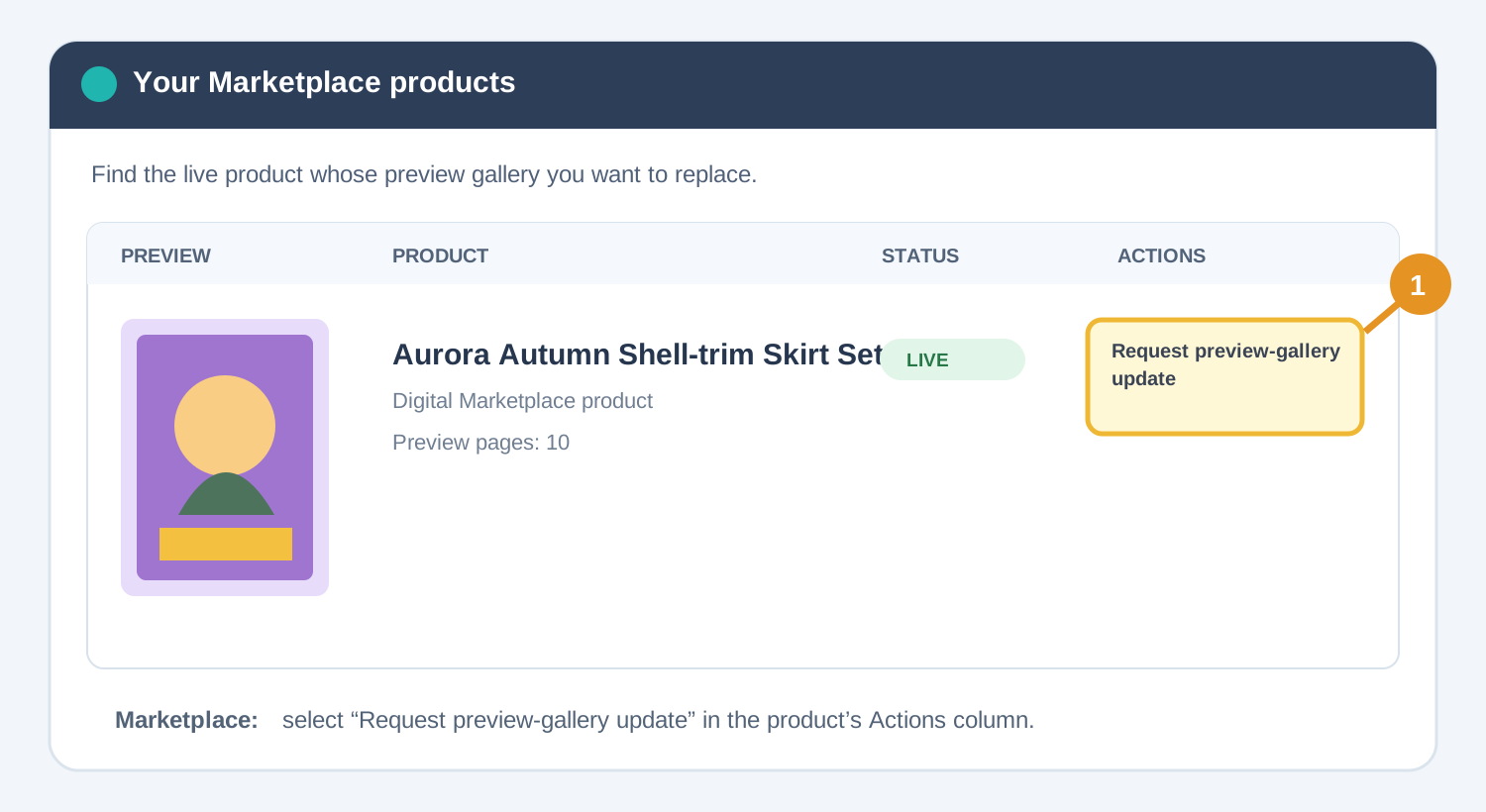
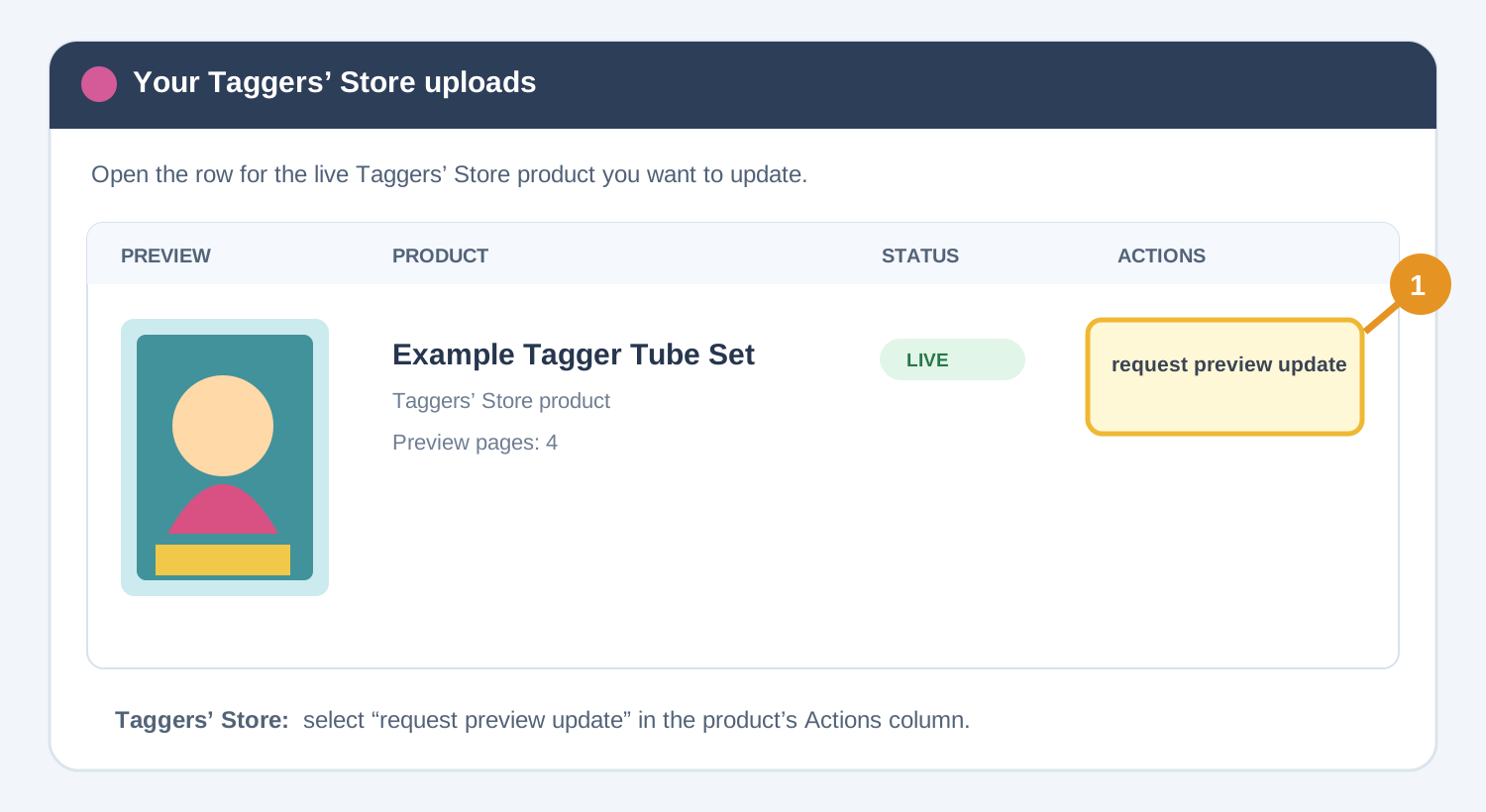
The action appears in the Actions column for eligible live products. Its wording depends on the store.
2. Select the complete replacement set and send it to review
- Sign in to the seller account that owns the product.
- Open your product list in the relevant store: Marketplace for digital products or Taggers’ Store for Tagger products.
- Find the live product whose previews need to be replaced.
- Select Request preview-gallery update in Marketplace, or request preview update in Taggers’ Store.
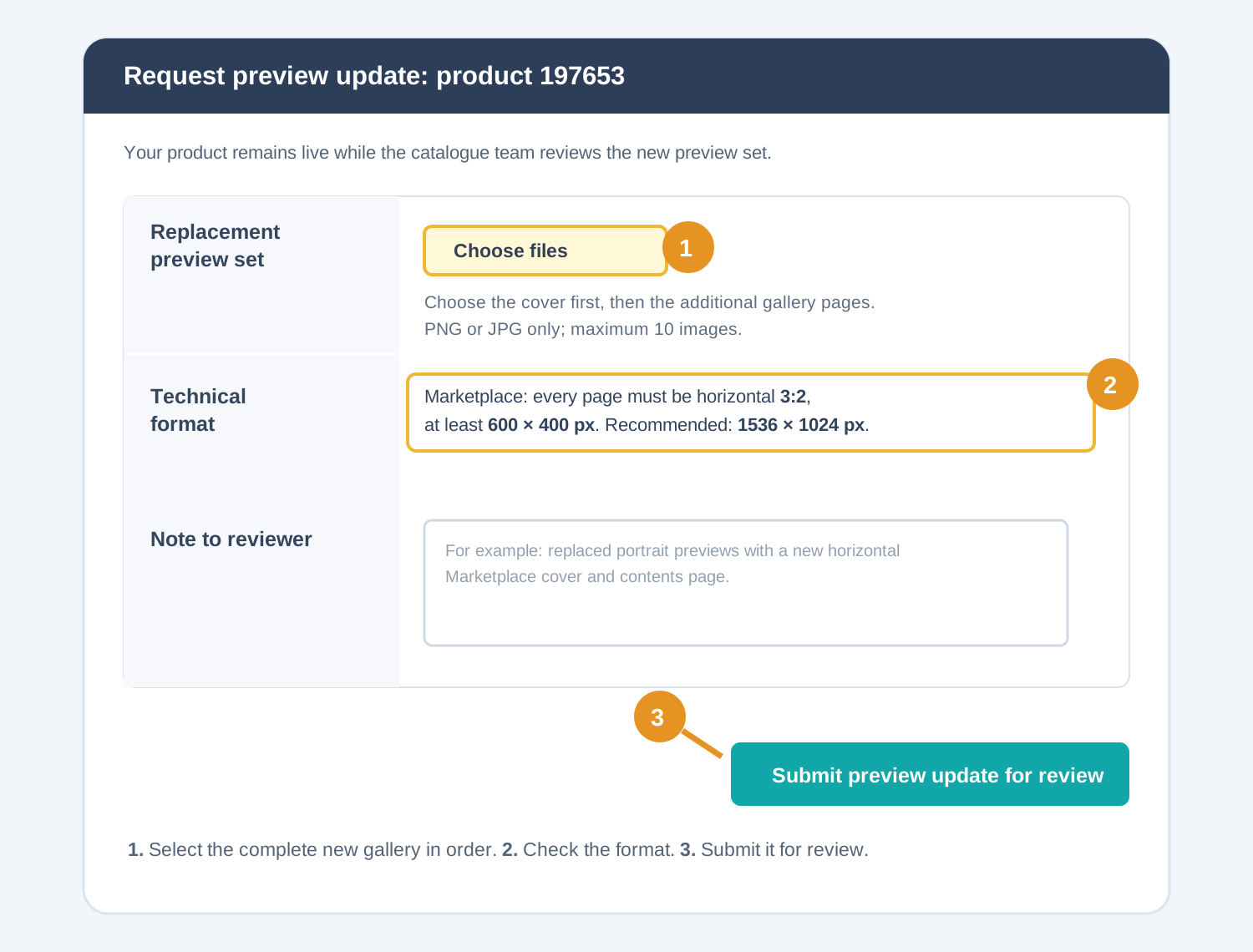
- In Replacement preview set, select all new images at once. Select the cover first, then the additional gallery pages in their intended order.
- Confirm the technical requirements shown on the page for your store.
- Optionally add a short note for the reviewer, for example: “Replaced old portrait previews with a horizontal 3:2 cover and contents page.”
- Select Submit preview update for review.
What happens after submission
- The request is placed in the catalogue review queue.
- Your current gallery remains public while the team checks the new files.
- If the request is approved, the full old gallery is replaced by the submitted set. The first submitted image becomes the live cover.
- If the request is rejected, the live gallery is not changed. Use the reviewer feedback to correct the set and submit a new request.
Only one preview-update request can be waiting for review for a product at a time. Wait until it is approved or rejected before sending another request for the same product.
Common mistakes to avoid
- Submitting only a new cover: this will leave the product with only that page after approval. Include all pages you want to keep.
- Using the wrong first file: the first selected image is the cover. Check the selection order before submitting.
- Using square or portrait Marketplace previews: Marketplace replacements require horizontal 3:2 pages, including additional pages.
- Showing something that is not in the download: previews must accurately represent the files the buyer receives.
- Trying to change the ZIP or product details through this form: the request changes previews only.
- Sending a second request while one is pending: finish the current review cycle first.
Previously uploaded or deleted work: restore, do not upload a duplicate
Deleting a work does not make it a new work. You must not upload a previously added work again as a new listing after deleting it. The upload system checks previous active and deleted uploads and blocks detected duplicates. This protects the catalogue from old works being moved back to the top as if they were new.
If you see the message that the work was already uploaded, first check whether you uploaded it earlier, including under an older listing that you later deleted. Do not try to bypass the check by renaming or repacking the archive, changing only the title, or replacing only the preview.
If only the previews need correcting
Keep the existing product and use Request preview-gallery update / request preview update, as described above. Submit the complete replacement gallery. This updates previews after moderation; it does not create a new product or replace its downloadable archive.
If the original listing was deleted
Contact Support with your seller username, the old product link or ID if available, the work title, and a screenshot of the duplicate-upload message. Support can locate the original listing, verify ownership and the available files, and help restore it where restoration is possible. An upload is not restored automatically by sending a preview-update request.
If you have made a genuinely new version
A new preview, title, filename or ZIP package alone does not make the old artwork a new work. If the artwork or downloadable content has been substantially reworked and a separate new listing is genuinely needed, explain the changes to Support and obtain approval before uploading it again. The catalogue team will advise whether to update or restore the old listing, or review a genuinely new version as a separate product.
Need help?
If you cannot find the request action, make sure you are signed in as the product owner and that the listing is live or has been added to the directory. If a technical error occurs, contact support with the product link, a screenshot of the message and the dimensions/file types of the images you attempted to submit. Never send your password.
Русская версия
Новый инструмент для продавцов: продавцы Taggers’ Store и Marketplace могут подать заявку на замену всей галереи превью у уже созданного товара. Создавать товар-копию для этого больше не нужно.
Что именно будет заменено
После одобрения заявки заменяется вся галерея превью. Первое выбранное изображение станет главным превью (обложкой), остальные — дополнительными страницами галереи. Старые превью удаляются только после одобрения и публикации новой галереи.
Это не инструмент для замены одной отдельной картинки с сохранением остальных старых страниц. Поэтому в заявке нужно приложить полный новый набор — все изображения, которые должны остаться у товара после обновления.
Что не меняется
Товар остаётся тем же: не меняются его ссылка, название, описание, цена, категории, теги, ZIP/файлы для скачивания, продажи, избранное и статистика. Пока заявка находится на модерации, текущая галерея и сам товар остаются доступными покупателям.
Требования к файлам
- От 1 до 10 изображений в одной заявке.
- Только PNG или JPG/JPEG.
- Первым выбирайте главное превью, затем дополнительные страницы в нужном порядке.
- Для Marketplace: каждое изображение горизонтальное 3:2, минимум 600 × 400 px; рекомендовано 1536 × 1024 px.
- Для Taggers’ Store: каждое изображение не меньше 550 × 550 px.
Как отправить заявку
- Войдите в аккаунт владельца товара.
- Откройте список своих товаров в Marketplace или Taggers’ Store.
- Найдите нужный активный товар.
- Выберите Request preview-gallery update в Marketplace или request preview update в Taggers’ Store.
- В поле Replacement preview set выберите все новые изображения: сначала обложку, затем дополнительные страницы.
- При необходимости напишите заметку модератору и нажмите Submit preview update for review.
После отправки
Заявка поступает в очередь модерации. При одобрении вся старая галерея будет заменена вашим набором; при отклонении текущая галерея не меняется. Для одного товара одновременно может быть только одна заявка в ожидании. Чтобы отправить исправленную версию, дождитесь решения по текущей заявке.
Ранее загруженные и удалённые работы: восстановление вместо повторной загрузки
Удаление не делает работу новой. Нельзя загрузить ранее добавленную работу повторно как новый товар после её удаления. Система проверяет ранее загруженные активные и удалённые работы и блокирует обнаруженные дубликаты, чтобы старые работы не возвращались в начало каталога под видом новых.
Если система сообщает, что работа уже загружалась, проверьте, не добавляли ли вы её раньше и не удаляли ли старую карточку. Переименование или перепаковка архива, смена названия либо только превью не являются новой работой и не должны использоваться для обхода проверки.
- Нужно исправить только превью: сохраните существующий товар и отправьте полный новый набор через заявку на обновление галереи превью. Она не создаёт новую карточку и не заменяет ZIP для скачивания.
- Старая карточка удалена: отправьте в поддержку логин продавца, старую ссылку или ID, название работы и скриншот сообщения. Поддержка найдёт исходную запись, проверит владельца и наличие файлов и поможет восстановить карточку, если восстановление возможно. Заявка на превью сама по себе не восстанавливает удалённый товар.
- Создана действительно новая версия: работа или содержимое для скачивания должны быть существенно переработаны. Опишите отличия и получите согласование поддержки до повторной загрузки. Команда каталога подскажет, нужно ли обновить или восстановить старую карточку либо рассмотреть новую версию как отдельный товар.